
This tutorial on the Bittrex platform will teach you everything you need to know to transfer bitcoins from a third-party platform, buy altcoins , secure your account with two-factor authentication , and protect yourself by setting effective stop-losses on your short-term investments.
Bittrex is a cryptocurrency exchange founded in 2013 by former IT security experts from Blackberry, Amazon, and Microsoft. Since November 2018, Bittrex has been divided into two sub-platforms: Bittrex.com , based in Seattle, USA, and Bittrex International , based in Malta.
This separation is due to US financial legislation, which is much more drastic than in the rest of the world, particularly in terms of fundraising through IEOs .
Thus, US customers will connect to Bittrex.com and customers from other countries to Bittrex International. Here we will present Bittrex International; however, note that the operation of Bittrex.com should be roughly the same.
Unlike Coinbase and Kraken , which restrict the range of cryptocurrencies they trade, this platform offers a very wide selection: at the time of writing, no fewer than 286 cryptoassets are listed on Bittrex International.
Unlike Coinbase and Kraken , which restrict the range of cryptocurrencies they trade, this platform offers a very wide selection: at the time of writing, no fewer than 286 cryptoassets are listed on Bittrex International.
You can purchase these assets through benchmark cryptocurrencies (BTC, ETH, USDT) or the US dollar (USD), the latter of which has only been supported since 2018. Bittrex is therefore a platform of choice for anyone looking to diversify their portfolio with cryptocurrencies that are perhaps a little less in the spotlight. In addition, the security methods provided by Bittrex are currently the best on the market, and this has greatly contributed to its influence in the cryptocurrency world.
Before you begin, make sure you have an ID and a way to take a picture of it (smartphone, webcam): Bittrex has been requiring you to verify your identity for some time now.
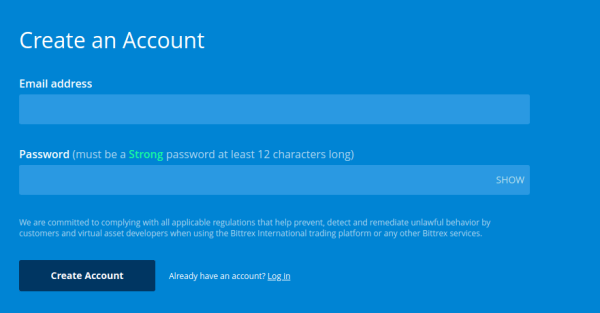
Click Sign Up to begin the registration process. First, enter your email address and choose a strong password .
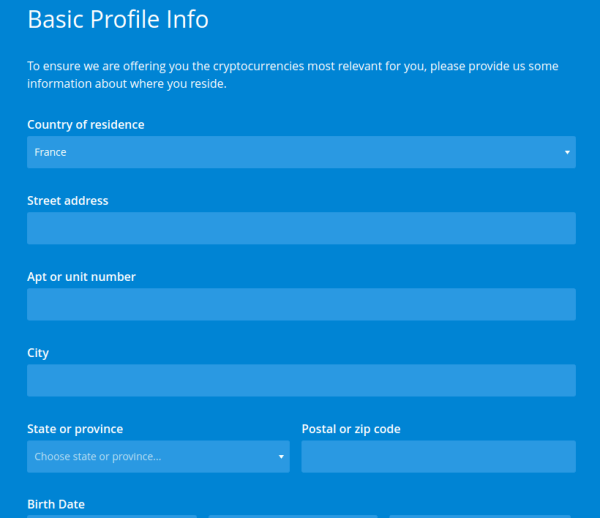
Accept the Terms of Service after reading them. Then, fill out the form with your personal information: country of residence, address, date of birth, etc.
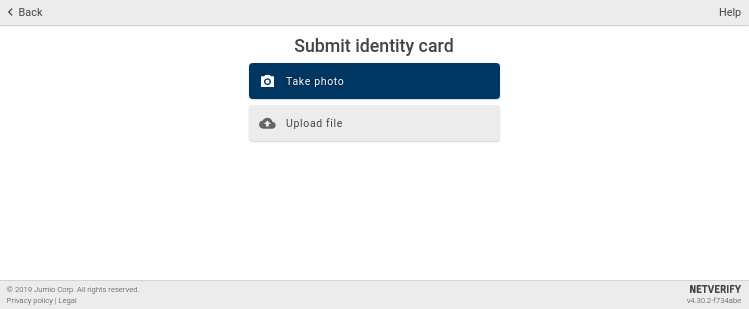
You'll then need to provide a digital copy of your ID. This can be an ID card , passport , or driver's license . Bittrex says providing your passport will speed up the verification process, so if you have one, consider using it. You'll have the option to take the photo directly or upload an existing file.
You will then need to install the Google Authenticator application on your mobile (1) and use it to scan the QR code displayed on the screen (2).
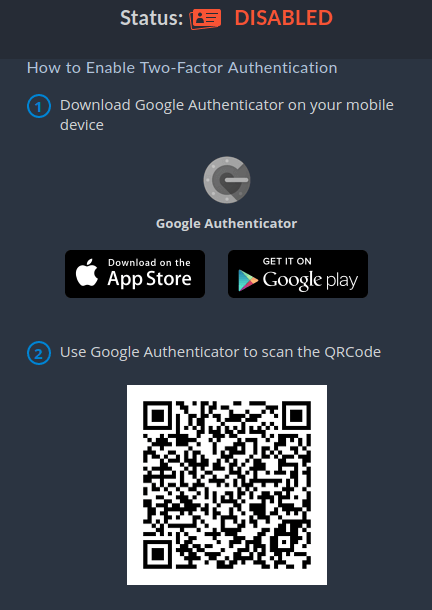
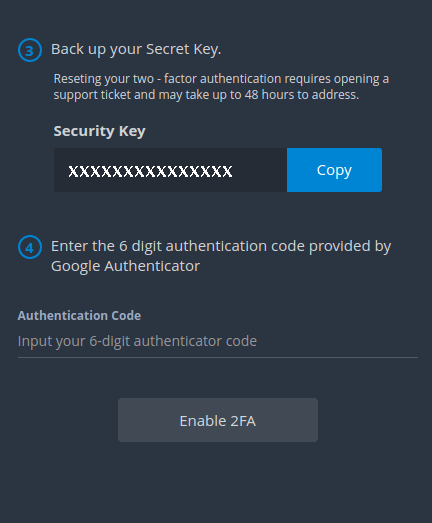
For security reasons, copy the 16-character key (3) onto a piece of paper and keep it safe. This code will allow you to reset the two-factor authentication in the event of breakage, loss, or theft of your device.
Finally, enter the 6-digit code given by the application in the appropriate field (4) to validate the activation.
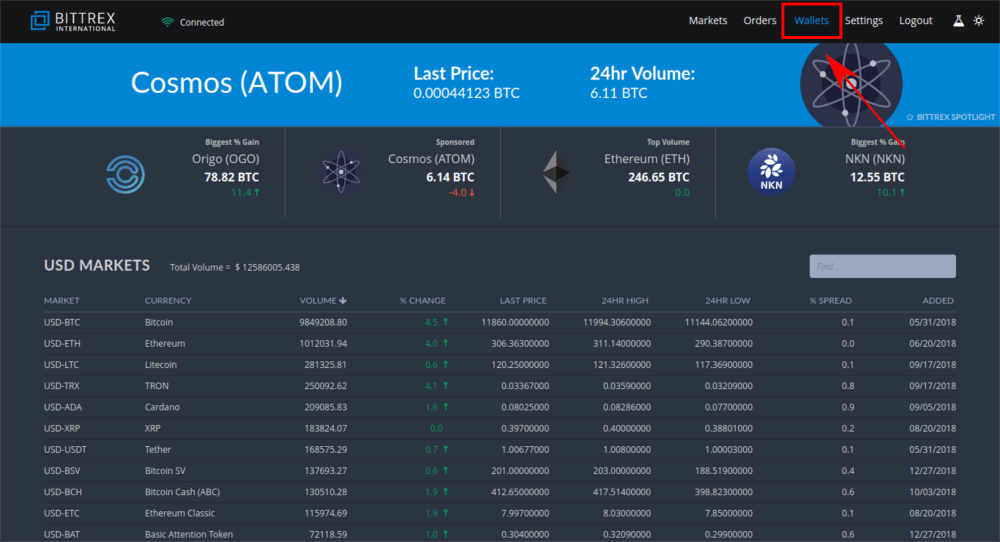
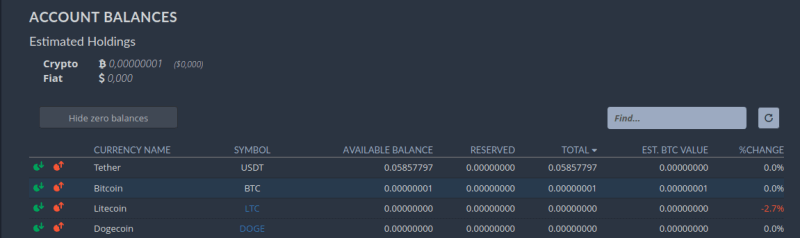
Then click the green icon to the left of Bitcoin. This will reveal your wallet address.
The following window will appear on the screen:
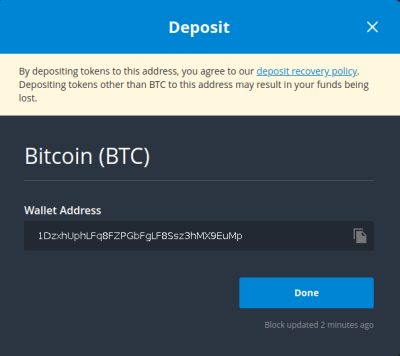
The string is your Bitcoin receiving address . This is what you will need to enter as the recipient from the platform you are using or from your wallet. If the exchange where your bitcoins are currently being deposited has a mobile app, you can simply scan the QR code obtained to enter your wallet address on Bittrex (otherwise, a simple copy and paste will work).
Shortly after transferring your bitcoins, you should see the transferred amount in the Pending Deposits section below your various balances. The transfer isn't instant, so don't worry if you haven't received your bitcoins after 5 minutes of waiting.
Congratulations! You've now successfully transferred your bitcoins from another platform. Now the fun begins: you can use your BTC to invest in the famous altcoins!
Here we will focus on BitTube (TUBE), which is not listed on other major platforms like Binance . This is just an example and is not an incentive to invest: TUBE has a very low market capitalization and can therefore be subject to high volatility.

Then click on “BitTube” to view the page dedicated to this asset:
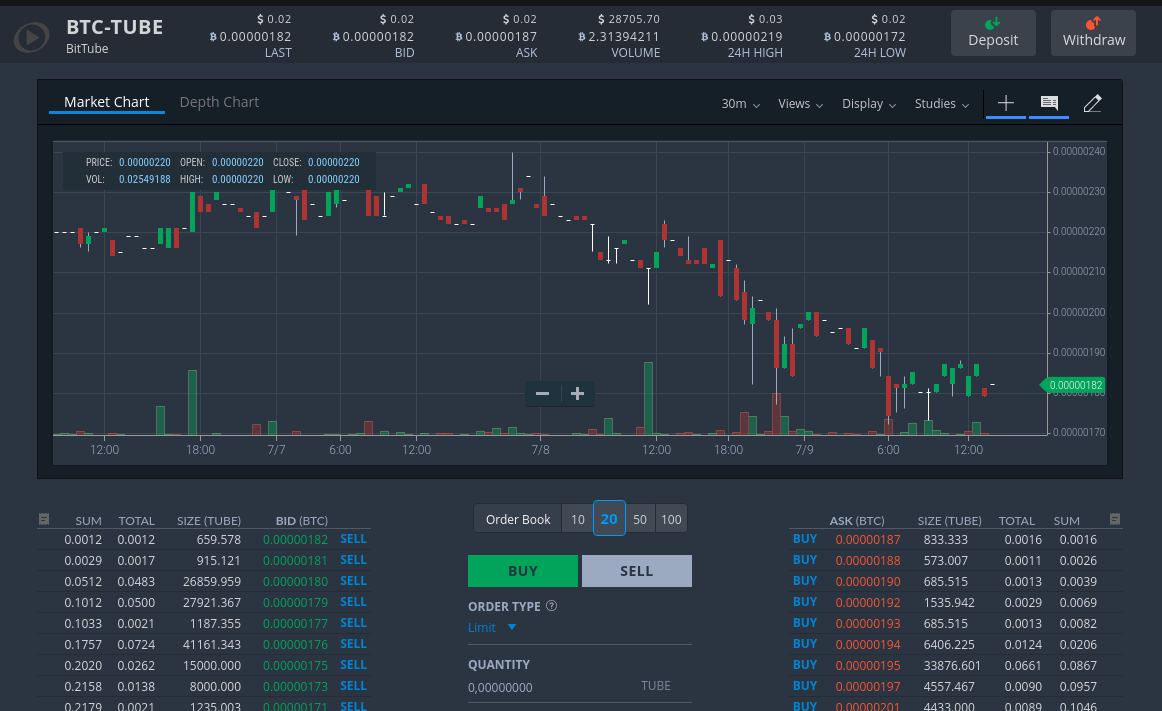
On this page you will find a lot of information that can be confusing for a beginner:The graph of the evolution of the currency (by default the time unit is 30 min).
Global information over the last 24 hours: minimum/maximum prices, volume traded, etc.
The box dedicated to placing buy and sell orders.
The order book (we will devote a chapter to this) located on either side of this insert.
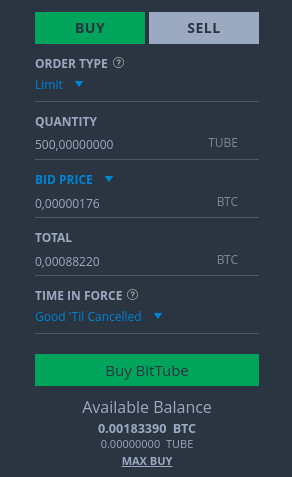
Once you have entered these parameters, click on Buy BitTube and your purchase order will be placed! You will notice it yourself, the first time it may seem quite complicated but once you have done it 2 or 3 times, it will only take you a few seconds to place your order.
You can check the creation of your order in the Open Orders section located under the order book, or in the Orders tab :

Of course, you can sell at a loss by placing a traditional sell order, but unless you're constantly ahead of the crypto price, you often won't be able to react quickly enough. This is where the " stop loss " (cutting your losses short) comes in.
Nothing better than an example to illustrate this:
I decide to buy BitTube at 176 satoshis because I feel that it is starting to rise towards 230 satoshis. So I place my buy order as explained in the previous chapter and my account is credited with the 500 TUBE just purchased. I decide to go eat (yes yes it is necessary from time to time ...) and when I open Blockfolio I realize that in the space of a few minutes the price has lost more than 30% because of the bad news that has just come out ... I am stuck and I dare not do anything other than keep ( hold ) my BitTube and pray that its price goes back up ...
With a stop loss this situation would not have occurred?
To place one, go to the order module and select SELL :
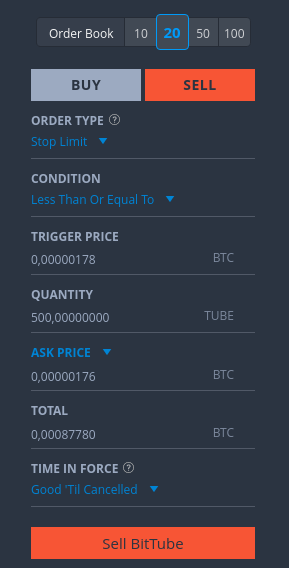
Change the order type to Stop Limit (trigger range order) and select the Less Than or Equal To condition, which allows you to place a stop order for sale. You will then need to fill in the necessary details.
Since we bought at the right time, the price has risen slightly: we can therefore place a Stop Limit order that will sell the funds at the price we bought them ( break-even point ) so as not to incur a loss (apart from the fees charged by the platform). We set the Trigger Price at 178 satoshis and the Sell Price at 176 satoshis: thus, if the market price falls below 178 satoshis at any point, we will sell our TUBE at a price greater than or equal to 176 satoshis.
Make sure your sell price is low enough compared to the trigger price: if the market drops too quickly (as is often the case with assets as illiquid as BitTube), and your limit order is too high, it may not be executed.
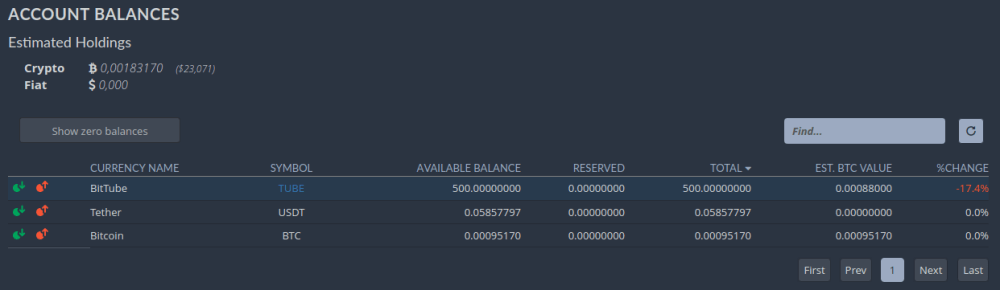
You will then have to enter the desired amount , as well as the address to which you want the funds. This address is normally provided by the other exchange platform or by your wallet.

You'll be charged a withdrawal fee. For some cryptocurrencies like Bitcoin or Ether, these fees can sometimes be high, so make sure you're comfortable with them before confirming.
If you have enabled two-factor authentication, you will need to enter the code provided on your smartphone. Otherwise, you will be asked to confirm the withdrawal by email.
I hope this tutorial has answered your questions, but if you still have any questions or if you have any suggestions, don't hesitate to contact me and I'll do our best to help!
How To Register on Bittrex
To sign up, go to the Bittrex International website . Note that if you try to access Bittrex.com from outside the United States, you will be redirected to Bittrex International anyway.Before you begin, make sure you have an ID and a way to take a picture of it (smartphone, webcam): Bittrex has been requiring you to verify your identity for some time now.
Click Sign Up to begin the registration process. First, enter your email address and choose a strong password .
Accept the Terms of Service after reading them. Then, fill out the form with your personal information: country of residence, address, date of birth, etc.
You'll then need to provide a digital copy of your ID. This can be an ID card , passport , or driver's license . Bittrex says providing your passport will speed up the verification process, so if you have one, consider using it. You'll have the option to take the photo directly or upload an existing file.
Secure your account with two-factor authentication
Two -factor Authentication ( 2FA ) adds a layer of security to your account by requiring both something you know (your password) and something you have (a smartphone or other device) to perform the most critical actions: logging in, withdrawing crypto assets , etc. While this is optional, it is highly recommended that you secure your account this way before receiving funds. To learn more, please scroll down below.Enable two-factor authentication (2FA)
To enable (or disable) two-factor authentication, go to the Settings tab in the top right corner, then select Two-Factor Authentication from the menu on the left.You will then need to install the Google Authenticator application on your mobile (1) and use it to scan the QR code displayed on the screen (2).
For security reasons, copy the 16-character key (3) onto a piece of paper and keep it safe. This code will allow you to reset the two-factor authentication in the event of breakage, loss, or theft of your device.
Finally, enter the 6-digit code given by the application in the appropriate field (4) to validate the activation.
Transfer Bitcoins to Bittrex
I'll explain how to transfer bitcoins to your wallet, but note that this method works for all altcoins listed on Bittrex. In this chapter, I'll assume you've already created your Bittrex account and already have bitcoins on another platform or in a personal wallet . Once logged in to Bittrex, go to the Wallets menu .Then click the green icon to the left of Bitcoin. This will reveal your wallet address.
The following window will appear on the screen:
The string is your Bitcoin receiving address . This is what you will need to enter as the recipient from the platform you are using or from your wallet. If the exchange where your bitcoins are currently being deposited has a mobile app, you can simply scan the QR code obtained to enter your wallet address on Bittrex (otherwise, a simple copy and paste will work).
Shortly after transferring your bitcoins, you should see the transferred amount in the Pending Deposits section below your various balances. The transfer isn't instant, so don't worry if you haven't received your bitcoins after 5 minutes of waiting.
Congratulations! You've now successfully transferred your bitcoins from another platform. Now the fun begins: you can use your BTC to invest in the famous altcoins!
Place an exchange order
Go to the Markets tab : This page lists all the trading pairs available on Bittrex. Scroll down until you see the BTC markets, then type in the name of the altcoin you want to trade.Here we will focus on BitTube (TUBE), which is not listed on other major platforms like Binance . This is just an example and is not an incentive to invest: TUBE has a very low market capitalization and can therefore be subject to high volatility.
Then click on “BitTube” to view the page dedicated to this asset:
On this page you will find a lot of information that can be confusing for a beginner:The graph of the evolution of the currency (by default the time unit is 30 min).
Global information over the last 24 hours: minimum/maximum prices, volume traded, etc.
The box dedicated to placing buy and sell orders.
The order book (we will devote a chapter to this) located on either side of this insert.
A summary of current orders.
Looking at the chart, you might think it's time to invest in this currency, as its value is likely to rise significantly over the next few days/months! So, let's take a look at the BUY order module .Once you have entered these parameters, click on Buy BitTube and your purchase order will be placed! You will notice it yourself, the first time it may seem quite complicated but once you have done it 2 or 3 times, it will only take you a few seconds to place your order.
You can check the creation of your order in the Open Orders section located under the order book, or in the Orders tab :
Cover your positions with a stop loss
This is an advanced feature, but it's essential to master it if you plan to trade in the short term. It allows you to sell at a loss if the price changes direction suddenly. While it's never pleasant to sell at a loss, it's better to lose 2% and possibly buy back at a lower price than to suffer the entire decline and lose 20%.Of course, you can sell at a loss by placing a traditional sell order, but unless you're constantly ahead of the crypto price, you often won't be able to react quickly enough. This is where the " stop loss " (cutting your losses short) comes in.
Nothing better than an example to illustrate this:
I decide to buy BitTube at 176 satoshis because I feel that it is starting to rise towards 230 satoshis. So I place my buy order as explained in the previous chapter and my account is credited with the 500 TUBE just purchased. I decide to go eat (yes yes it is necessary from time to time ...) and when I open Blockfolio I realize that in the space of a few minutes the price has lost more than 30% because of the bad news that has just come out ... I am stuck and I dare not do anything other than keep ( hold ) my BitTube and pray that its price goes back up ...
With a stop loss this situation would not have occurred?
To place one, go to the order module and select SELL :
Change the order type to Stop Limit (trigger range order) and select the Less Than or Equal To condition, which allows you to place a stop order for sale. You will then need to fill in the necessary details.
Since we bought at the right time, the price has risen slightly: we can therefore place a Stop Limit order that will sell the funds at the price we bought them ( break-even point ) so as not to incur a loss (apart from the fees charged by the platform). We set the Trigger Price at 178 satoshis and the Sell Price at 176 satoshis: thus, if the market price falls below 178 satoshis at any point, we will sell our TUBE at a price greater than or equal to 176 satoshis.
Make sure your sell price is low enough compared to the trigger price: if the market drops too quickly (as is often the case with assets as illiquid as BitTube), and your limit order is too high, it may not be executed.
Withdraw funds from Bittrex
You may want to withdraw your crypto assets from Bittrex, either to another platform or to a personal wallet. To do so, go to the Wallets tab and click the red withdrawal icon next to the relevant crypto asset.You will then have to enter the desired amount , as well as the address to which you want the funds. This address is normally provided by the other exchange platform or by your wallet.
You'll be charged a withdrawal fee. For some cryptocurrencies like Bitcoin or Ether, these fees can sometimes be high, so make sure you're comfortable with them before confirming.
If you have enabled two-factor authentication, you will need to enter the code provided on your smartphone. Otherwise, you will be asked to confirm the withdrawal by email.
Conclusion
If you've made it this far, you'll now know the main features that will allow you to trade more confidently on Bittrex.I hope this tutorial has answered your questions, but if you still have any questions or if you have any suggestions, don't hesitate to contact me and I'll do our best to help!